Setting up your Mikrotik HaP ax2 router
How to connect your Home Internet service to a Mikrotik HAP AX2 router. This guide will walk you through the steps to set up your router and get your internet connection up and running.
Unpacking your HaP ax2 router
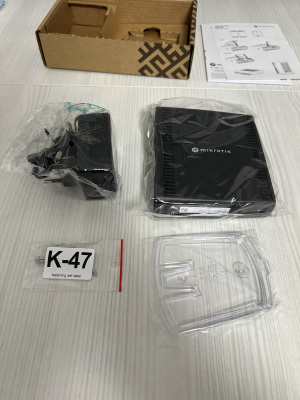
When you receive your Mikrotik HAP AX2 router, it will come in a box with the following items as shown above.
- Mikrotik HAP AX2 router
- Power adapter
- Wall mount kit
Connecting to your nbn device
Use an Ethernet cable to connect the WAN port marked Internet on your Mikrotik HAP AX2 router to the Ethernet port on your nbn device.
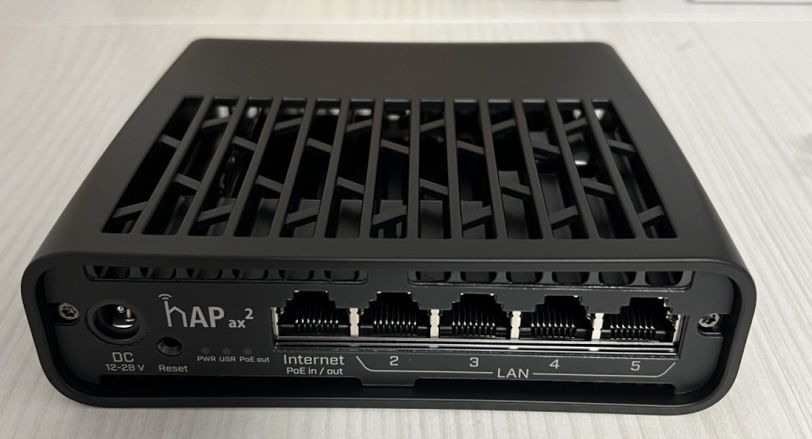
Power on your Mikrotik HAP AX2 router and wait for the front LED to turn green. This indicates that your router is connected to the internet. Note the LED will flicker if data is being transmitted. If the LED does not turn green, check your cable connection.
Configuring your Mikrotik HAP AX2 router
To configure your Mikrotik HaP AX2 router, you can download the Mikrotik app from the Apple Store or Google Play Store. Once you have the app installed, follow the steps below.
On your mobile device, connect to the WiFi Network Netbright-XXXX where XXXX is unique to your router. Enter the password WeAreHere! to connect to the network.
Open the Mikrotik app and login using the user admin and the password shown on the router's label on the left hand side of the router. Once logged in you will be shown the main dashboard of the Mikrotik app.
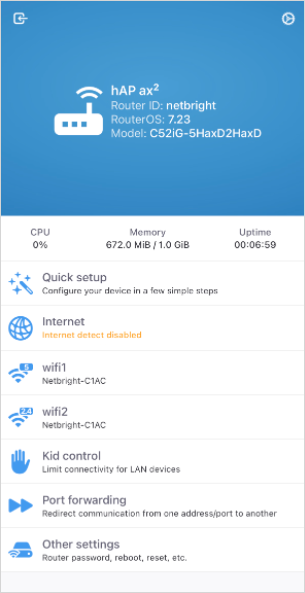
- Choose Quick Setup from the menu and tap Start.At the Regional Settings screen, select Australia and tap Next.
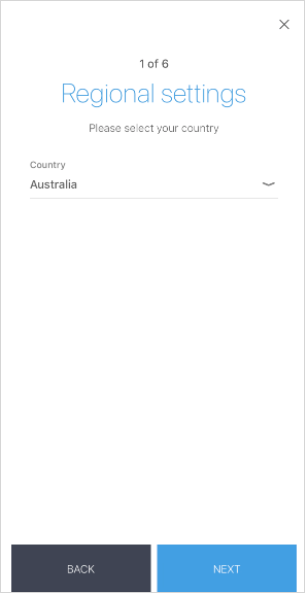
At the Internet Access screen, tap Next.
At the Local Network screen, tap Next.
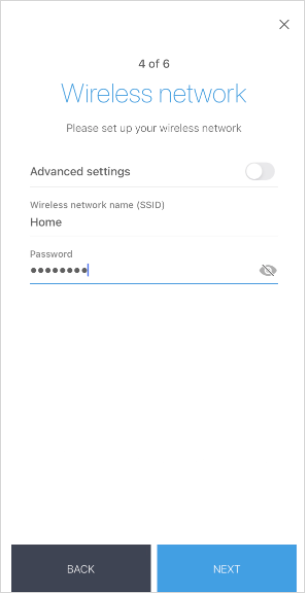
At the Wireless network screen, you can change the WiFi name and password. Once you have made your changes, tap Next.
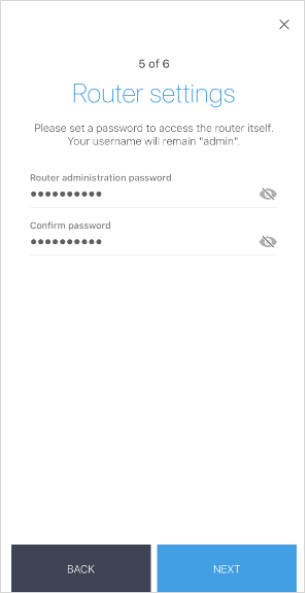
- At the Router Setting screen, you can change the router's admin password. Once you have made your changes, tap Next.
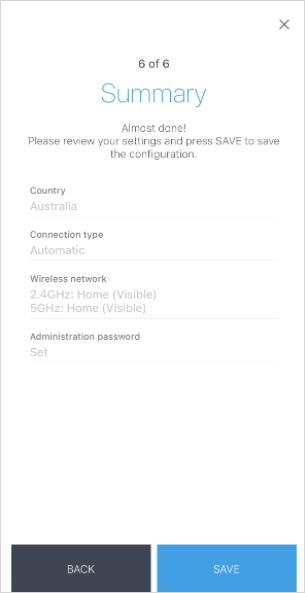
- At the Summary screen, review your settings and tap Save to save your changes.
Connect to your new Wifi network
On your mobile device, connect to the new WiFi network you created in the previous step. You should now be connected to the internet through your Mikrotik HAP AX2 router.
Connect wired devices to your Mikrotik HAP AX2 router
You can connect wired devices to your Mikrotik HAP AX2 router using the LAN ports on the back of the router. Use an Ethernet cable to connect your device to one of the LAN ports on the router. Your device should now be connected to the internet through your Mikrotik HAP AX2 router.